

A cracked or unresponsive iPhone screen leaves you locked out of your data. Drops happen often, and in 2026, iOS 19 brings tight security that makes fixes harder. Photos, messages, and apps stay trapped behind the damage. This guide shares seven reliable ways for how to unlock broken iPhone screen. These steps work on models from iPhone 12 to the newest ones. Some keep your data safe, others require a wipe. Back up when you can. We draw from Apple guidelines and tested user methods. Start simple and move to stronger options if needed.
What Causes a Broken iPhone Screen
Screens break from falls, impacts, or wear. The glass cracks first, then tou ch stops working. iOS locks protect your info with passcodes, Face ID, or Touch ID. A dead screen blocks entry. In 2026, iOS 19 improves alerts for damage but keeps strong locks. You need access for contacts, emails, or files. Without it, important info vanishes. Regular iCloud backups help, but a broken screen stops new ones. Learning how to unlock broken iPhone screen saves time and avoids loss. Match the method to your damage partial cracks allow more choices than full blackouts.
Tools and Backups You Need
Prepare items to avoid issues. Use a Mac or PC with the latest software. Grab a good USB-C or Lightning cable. Know your Apple ID and password for iCloud. Have a recent backup ready. Check your model, newer iPhones use USB-C. Strong Wi-Fi helps downloads. If touch works a bit, use it now. Official Apple cables prevent errors. In 2026, tools update fast, so get fresh versions. This prep makes how to unlock broken iPhone screen easier.
Ways to Unlock Broken iPhone Screen
1: Use VoiceOver with Siri for Partial Touch Issues
VoiceOver reads the screen and lets you navigate if touch responds somewhat. Activate Siri by saying “Hey Siri” or holding the side button. Say “Turn on VoiceOver.” The phone speaks items aloud. Swipe to move, double-tap to select. Hear numbers as you enter your passcode. This built-in tool helps with cracked screens where parts work. In 2026, iOS 19 makes voice feedback clearer. No data loss here. It needs some touch response. Practice gestures: three-finger swipe scrolls pages. Turn it off later in settings. Great for quick access without wipes.
2: Erase Remotely Using Find My
Find My works from another device if enabled before. Log into iCloud.com or the Find My app. Pick your iPhone. Choose Erase This Device. Enter your Apple ID password. It wipes the lock and data. Restore from backup afterward. No screen interaction needed. In 2026, Find My tracks better, but erase stays simple. Fast from anywhere with internet. Data gone without backup. Enable Find My always for this. After erase, set up fresh and pull from iCloud. Apple suggests this for severe damage.
3: Restore Through a Computer in Recovery Mode
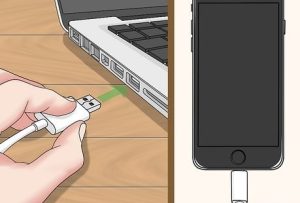
Connect to a computer with cable. Open Finder on Mac or iTunes on Windows. Enter recovery: for most models, quick volume up, volume down, hold side button until recovery shows. Choose Restore. It installs fresh iOS and removes the lock. Back up first if possible. In 2026, downloads go quicker. Fixes glitches too. Erases everything without backup. Use trusted computers. Follow Apple’s steps to avoid problems. Good cable matters. This resets fully for new start.
4: Use Trusted Third-Party Tools Like AnyUnlock
Tools like AnyUnlock from iMobie bypass locks safely. Download from their site. Connect your iPhone. Pick screen unlock option. It guides through firmware and removal. In 2026, it supports iOS 19 and latest models. Often keeps data in basic modes. Paid, but reliable with good reviews. Avoid free unknowns. Back up via the tool if offered. Simple interface with clear steps. Users report high success on broken screens.
5: Try Quick Checks If Siri Responds
Siri can open some features if set to work locked. Say “Hey Siri” and ask for time or messages. It reads recent ones or makes calls. Limited to basic tasks no full unlock. In 2026, Siri handles more voice commands. No data risk. Can’t change settings. Use for urgent contacts while planning full fix. Combine with other ways later.
6: Connect an External Accessory
Older iOS versions allowed USB keyboards via adapter for passcode entry. Apple blocked this after iOS 11 for security. In 2026, it doesn’t work on current systems. Skip if your phone runs newer iOS. Focus on other methods instead.
7: Get Professional Screen Repair
Visit an Apple Store or authorized shop. They replace the screen with genuine parts. Unlock normally after. Costs $200–$400 in 2026, based on model. With AppleCare+, much less. Full function returns. Takes time, sometimes days. Keeps warranty. Genuine parts last longer. Book online. Best for keeping data and long-term use.
Safety Tips and Common Mistakes to Avoid
Back up often. Use real cables. Avoid risky downloads. Third-party fixes may affect warranty. Don’t force buttons wrong. Stay patient because rushes cause errors. Test on similar setups if you can.
For more visit: https://appletechsolution.com/
Frequently Asked Questions
1. Can I unlock without a computer?
Yes, use Find My remotely or VoiceOver if touch works a bit.
2. Will these erase my data?
Some do, like erase or restore. Others, like VoiceOver, don’t.
3. What if the screen is completely black?
Remote erase or computer restore work best.
4. Is third-party software safe?
Trusted ones like AnyUnlock are, with good reviews.
5. How much for pro repair?
Around $200–$400, lower with coverage.
These seven ways cover most broken screen cases in 2026. Start with no-loss options like VoiceOver. Move to erases if needed. Back up regularly to protect data. Pick what fits your situation for quick access. Knowing how to unlock broken iPhone screen brings peace of mind.