
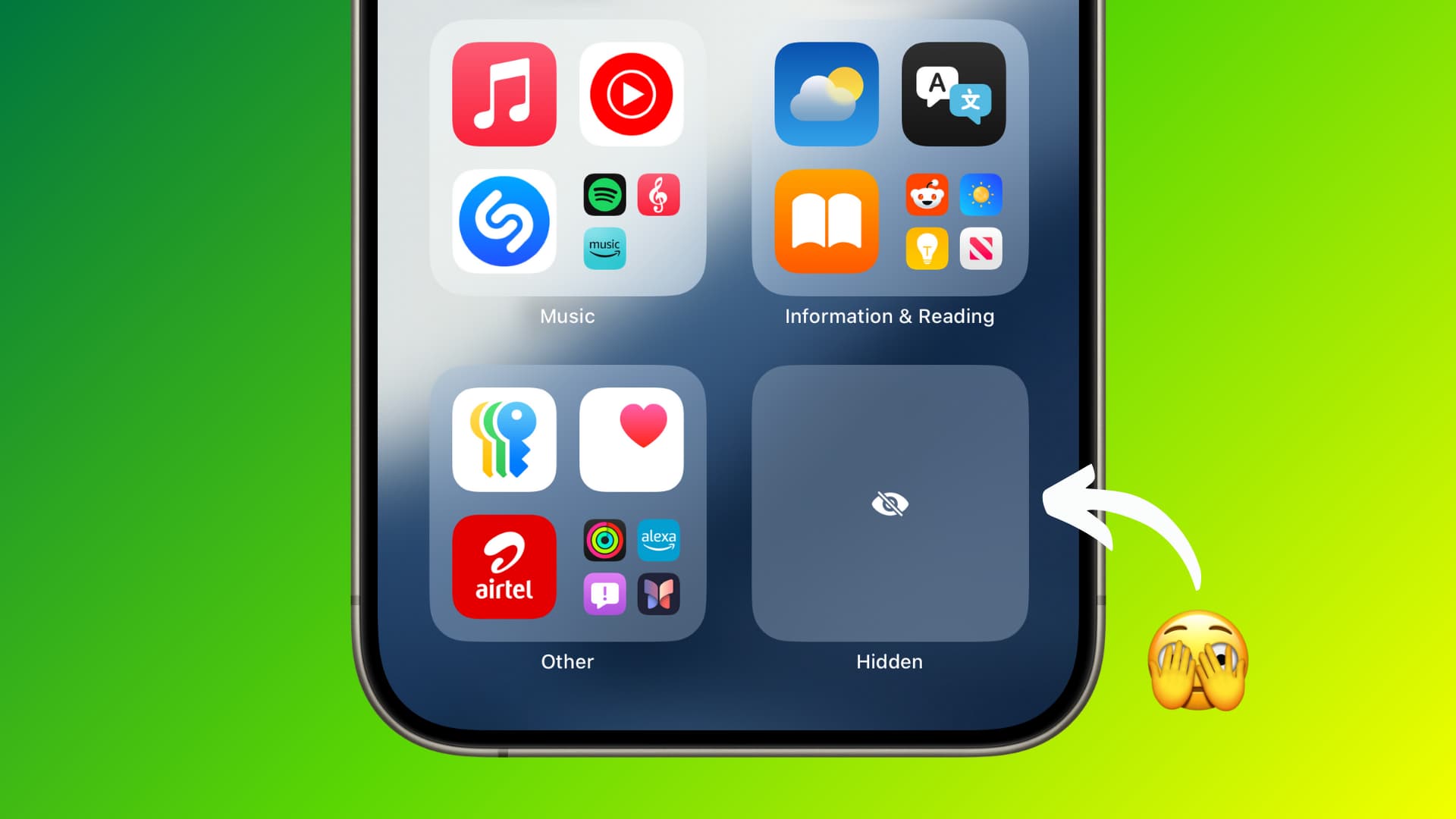

iPhones offer many ways to keep apps out of sight. Parents often want to check what kids use. Others look for lost apps. In 2026, iOS continues features from iOS 18, like a dedicated Hidden folder. Knowing how to find hidden apps on iPhone helps manage your device better. This guide lists 12 proven methods. Each one includes clear steps tested on current software. Pick what fits your situation. These tips work on the latest models too.
Understanding Hidden Apps on iPhone
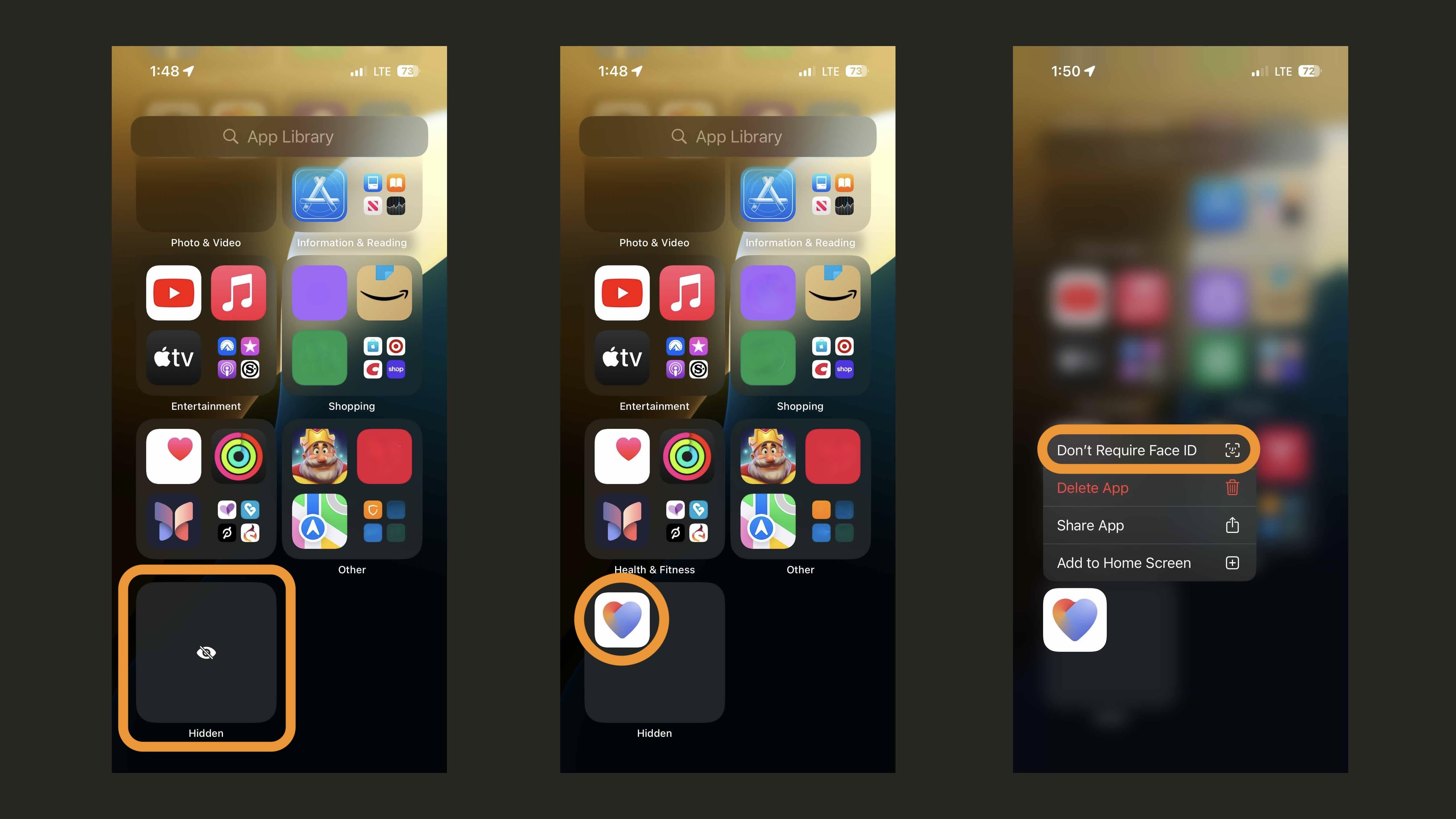
Apps hide in different ways on iPhone. Some users remove them from the home screen. Others use built-in lock and hide options introduced in iOS 18. These apps move to a special Hidden folder in the App Library. They require Face ID, Touch ID, or a passcode to open. Restricted apps via Screen Time might not show up either. Offloaded apps save space but stay installed. Purchased apps can hide from your history. All these keep icons away from plain view. Apple designs this for privacy. But owners need ways to locate them. Learning how to find hidden apps on iPhone starts with knowing these categories. Next sections cover each method step by step.
Methods to Find Hidden Apps on iPhone
1: Access the Hidden Folder in App Library
The easiest way in 2026 involves the App Library. Swipe left on your home screen until you reach it. Scroll down to the bottom. Look for a folder named Hidden. It appears even if empty on iOS 18 and later. Tap it and authenticate with Face ID, Touch ID, or passcode. Inside, you see all apps hidden with the built-in feature. Long-press an app to unhide or manage it. This method works fast for apps hidden directly. Many users forget this folder exists. It keeps things secure from casual glances. This stands as the top choice when learning how to find hidden apps on iPhone using native tools.
2: Use Spotlight Search
Spotlight Search finds most apps quickly. Swipe down on the home screen. Type the app name in the search bar. Results show even if the icon hides. For fully hidden apps in iOS 18+, they might not appear here. But removed from home screen or offloaded ones do. Tap the result to open it. This helps locate apps buried in folders too. Pull down from any page for quick access. Parents use this to spot suspicious names. It indexes everything on the device. Combine with Siri for voice search. This simple tool often reveals what you need without extra steps.
3: Check Settings > Apps > Hidden Apps
Apple added a direct list in Settings. Go to Settings and tap Apps. Scroll to find Hidden Apps. Tap it to view the list. Authenticate if needed. Here, all locked or hidden apps show up clearly. You can manage them from this menu. This official way avoids guessing. It works on iOS 18 and updates in 2026. No need to swipe through screens. Perfect for a full overview. Users appreciate this centralized spot. It ties into privacy controls.
4: Search in the App Store Purchase History
Some apps hide from your purchased list. Open the App Store. Tap your profile icon top right. Choose Purchased. Switch to All if needed. Scroll or search for the app. Hidden ones have a cloud icon but no direct show. To unhide, swipe left on the app and tap Unhide. This brings it back to your list. Great for old downloads you forgot. Family Sharing affects visibility too. Check Not on this iPhone tab. This method uncovers apps removed long ago.
5: Use Siri to Open the App
Siri opens apps by name even if hidden. Press the side button or say Hey Siri. Speak Open [app name]. If installed, it launches after authentication for protected ones. This bypasses visual search. Handy when you know the name but not location. Siri works offline for basic commands. Test with common apps first. It reveals existence without icons.
6: Check Screen Time Restrictions
Screen Time can limit or hide apps. Go to Settings > Screen Time. Tap Content & Privacy Restrictions. Enter the passcode if set. Look under Allowed Apps. Toggle off ones to hide them. To find restricted, check App Limits or Downtime. Disabled apps vanish from home. Parents set this often. Review usage reports for clues. Turn off restrictions to reveal everything. This explains missing built-in apps too.

7: Look in Settings for App List
Settings shows every installed app. Go to Settings > General > iPhone Storage. Wait for the list to load. Scroll through all apps. Tap one for details like offload or delete. This includes hidden or restricted. Sort by size for quick scan. Great for storage management. See versions and usage here.
8: Remove from Home Screen and Find in App Library
Apps removed from home go to App Library. Long-press home screen. Tap minus on app. Choose Remove from Home Screen. It stays in categories. Swipe to App Library and browse folders. Search within Library too. This common hide method is easy to reverse.
9: Check Offloaded Apps
Offloaded apps free space but keep data. In iPhone Storage list, they show a cloud icon. Tap to reinstall. Or search in App Store for download. This hides without full delete. Automatic offload happens on low space.
10: Use Folders on Home Screen
Users bury apps in folders. Long-press and drag into folders. Name them bland like Utilities. To find, open folders or use search. Jiggle mode to reorganize. This old trick still works.
11: Check Battery or Usage Stats
Hidden apps use battery. Go to Settings > Battery. Scroll for app usage. Or in Screen Time > See All Activity. Running apps appear even hidden. This indirect way spots secret use.
12: Reset Home Screen Layout
As last resort, reset layout. Go to Settings > General > Transfer or Reset iPhone > Reset > Reset Home Screen Layout. This brings back defaults. Custom hidden pages or folders reset. Backup first. Apps return to standard spots.
Tips for Managing Privacy and Security
Know the passcode for restrictions. Use strong authentication. Update iOS for latest protections. Third-party tools exist but stick to native. Monitor regularly if sharing device.
Potential Issues and Troubleshooting
Some apps resist search if deeply restricted. Restart device if lists fail. Check iCloud sign-in. Contact Apple Support for bugs.
Wrap Up
These 12 methods cover most scenarios in 2026. Start with App Library for quick wins. Mastering how to find hidden apps on iPhone gives control. Stay safe and organized.
For more visit: https://appletechsolution.com/
Frequently Asked Questions
1. Do hidden apps show in search on iPhone?
No, fully hidden apps in the Hidden folder do not appear in Spotlight or Siri search.
2. Can I find hidden apps without a passcode?
If authentication is set, you need Face ID, Touch ID, or passcode to access the Hidden folder.
3. Are offloaded apps considered hidden?
Yes, their icons disappear, but you can reinstall them easily from storage settings.
4. Does resetting home screen reveal all apps?
It reorganizes pages but does not unhide locked apps in the Hidden folder.
5. How do I know if Screen Time is hiding apps?
Check Settings > Screen Time > Content & Privacy Restrictions for toggled-off apps.