


Picture this: you’re out running errands, and you pull up Maps on your iPad to find the nearest coffee shop. But nothing loads right because location isn’t active. Frustrating, right? That’s where knowing how to turn on location services iPad comes in handy. This guide walks you through it all in just five minutes. We’ll cover the basics, steps, and extras to make your iPad work smarter for you. No tech jargon here—just clear advice to get you going fast. By the end, you’ll have location services up and running, plus tips to keep things secure and efficient.
Location services let your iPad pinpoint where you are. This powers apps like navigation, weather, and even photo tagging. If you’ve skipped enabling it during setup, don’t worry. We’ll show you how to turn on location services iPad without hassle. Apple keeps updating iPadOS, so this info aligns with the latest as of late 2025. Let’s jump in and make your device more useful.
:max_bytes(150000):strip_icc()/004-turn-location-services-on-ipad-4103808-9e03210740c74d9f9ec7a40f49e8acc9.jpg)
How to Turn On/Off Location Services on the iPad
(Here’s the Privacy & Security menu in Settings, where Location Services lives.)
What Are Location Services on Your iPad?
Location services are a core part of how your iPad interacts with the world around you. At its heart, this feature uses a mix of tech to figure out your spot on the map. Think GPS satellites for outdoor precision, Wi-Fi networks for indoor estimates, and Bluetooth signals for close-range tweaks. On Wi-Fi + Cellular iPads, cell towers add another layer of accuracy.
But it’s not just about hardware. iPadOS handles the software side, deciding when and how apps access this data. For example, if you’re using an app like Uber, it needs your position to send a ride your way. Without location services, that app falls flat. Apple has refined this over years, starting from early iOS days and evolving into iPadOS 19 in 2025. Newer models like the iPad Pro with M4 chip handle it even smoother, thanks to better sensors.
One key thing: location services aren’t always on full blast. They activate only when needed, saving battery. If your iPad is Wi-Fi only, it relies more on nearby networks than GPS. This setup makes it versatile for home use or travel. Understanding this helps you see why enabling it matters. It turns your tablet from a basic screen into a smart companion that knows your context.
Why You Should Turn On Location Services
Enabling location services opens up a world of convenience. Take navigation—apps like Google Maps or Apple Maps give turn-by-turn directions tailored to your exact spot. Without it, you’re stuck entering addresses manually every time. Weather apps pull local forecasts, so you know if rain’s coming before stepping out.
Social apps benefit too. Instagram tags photos with places, making memories more vivid. Find My helps track lost devices or share your ETA with friends. Even fitness trackers log runs accurately. In daily life, it’s a time-saver. For parents, it means safer family sharing features.
Battery drain is a common worry, but Apple optimizes it well. Location only kicks in when apps request it, and you control which ones. Tests show minimal impact—maybe 5-10% extra drain on heavy use days. Privacy stays protected with per-app settings. Overall, the pros outweigh the cons for most users. If you’re privacy-focused, you can limit access later. Turning it on gives you options without commitment.
Guide to Turn on Location Services iPad
Ready to activate? It’s straightforward. Start by unlocking your iPad and opening the Settings app, it’s the gear icon on your home screen. Scroll down until you see “Privacy & Security.” Tap that.
Inside, the top option is “Location Services.” If it’s off, the switch will be gray. Slide it to green to turn it on. Your iPad might ask for confirmation or show a brief explanation. That’s it—location services are active now.
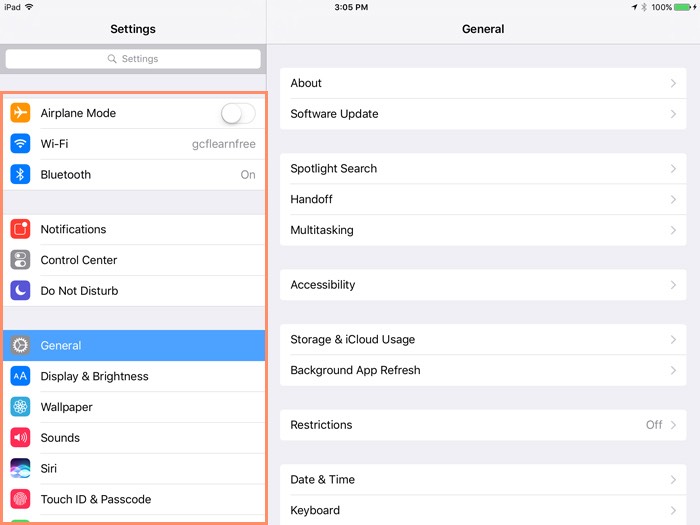
(Visual of the main Location Services toggle and menu.)
To check, open an app like Maps. It should detect your area right away. If not, give it a second to connect. This works on all recent iPadOS versions, including 19. For older models, the menu is similar but labeled “Privacy” without “Security.” Apple added the combo in iPadOS 15 for better organization.
If you skipped this during initial setup, no big deal. Many users do. Now that you’ve learned how to turn on location services iPad, apps will prompt for permission as needed. Keep your software updated for the smoothest experience, go to Settings > General > Software Update.
One tip: if your iPad is managed by work or school, admins might lock this. Contact them if the switch is grayed out. Otherwise, you’re good. This quick process takes under a minute once you know the path.
Setting Permissions for Individual Apps
With location services on, apps don’t get free rein. You decide access levels. Back in Settings > Privacy & Security > Location Services, scroll down. You’ll see a list of apps that have requested location.
Tap an app, say Safari. Options appear: Never, Ask Next Time Or When I Share, While Using the App, or Always. “Never” blocks it completely. “While Using” limits to when the app is open ideal for most. “Always” allows background tracking, like for delivery apps.


(App permissions screen showing options for individual apps.)
“Precise Location” is a toggle here too—more on that next. Apps explain why they need access, helping you choose wisely. Review this list often. Some apps sneak in requests, so pruning keeps things tidy.
For example, a banking app might need location for fraud checks. Allow it “While Using” to balance utility and privacy. If an app misbehaves, revoke access anytime. This granular control is why learning how to turn on location services iPad includes mastering permissions. It empowers you to use features without overexposure.
Using Precise Location for Better Accuracy
Precise location takes accuracy up a notch. Introduced in iPadOS 14, it uses full GPS data for exact positioning—down to meters. Without it, apps get a rough estimate, like within a few blocks.
To enable: In the app’s location settings, flip the “Precise Location” switch on. Do this for navigation or augmented reality apps where detail matters. For casual use, like weather, approximate is fine and saves power.
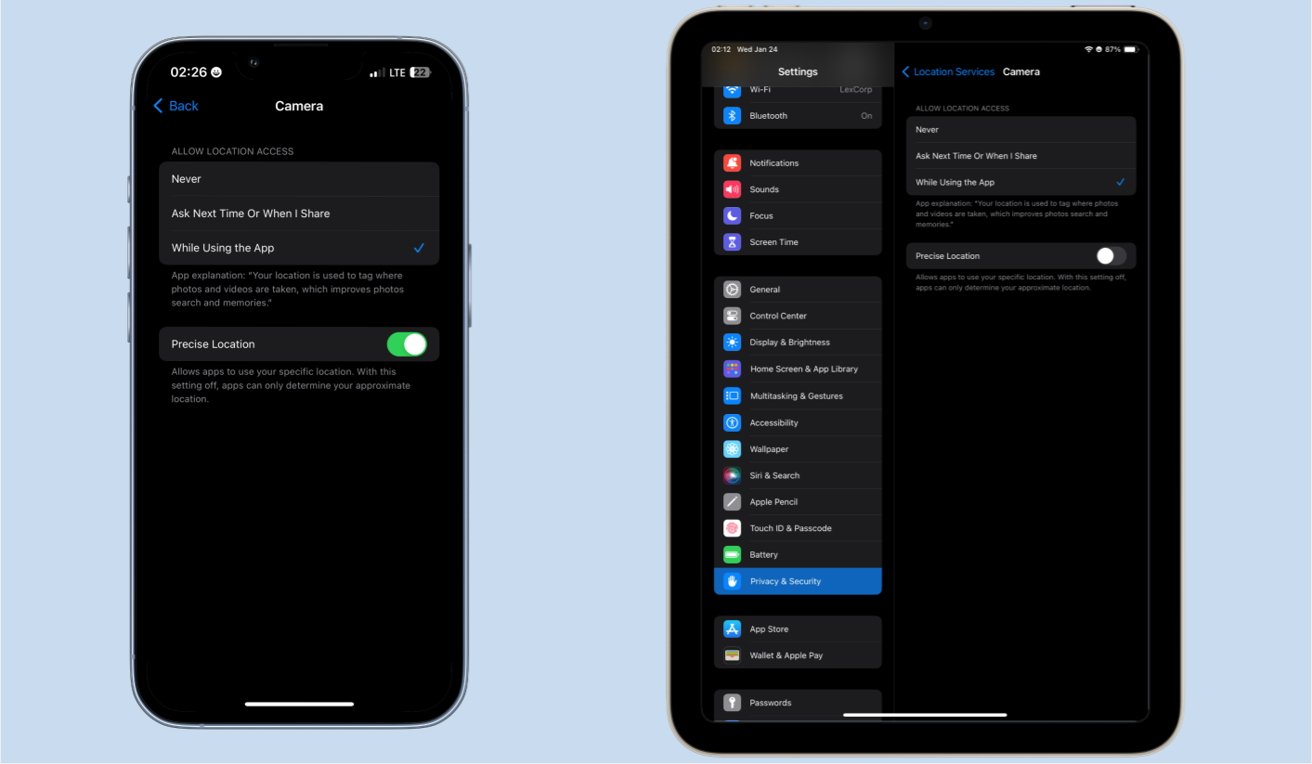
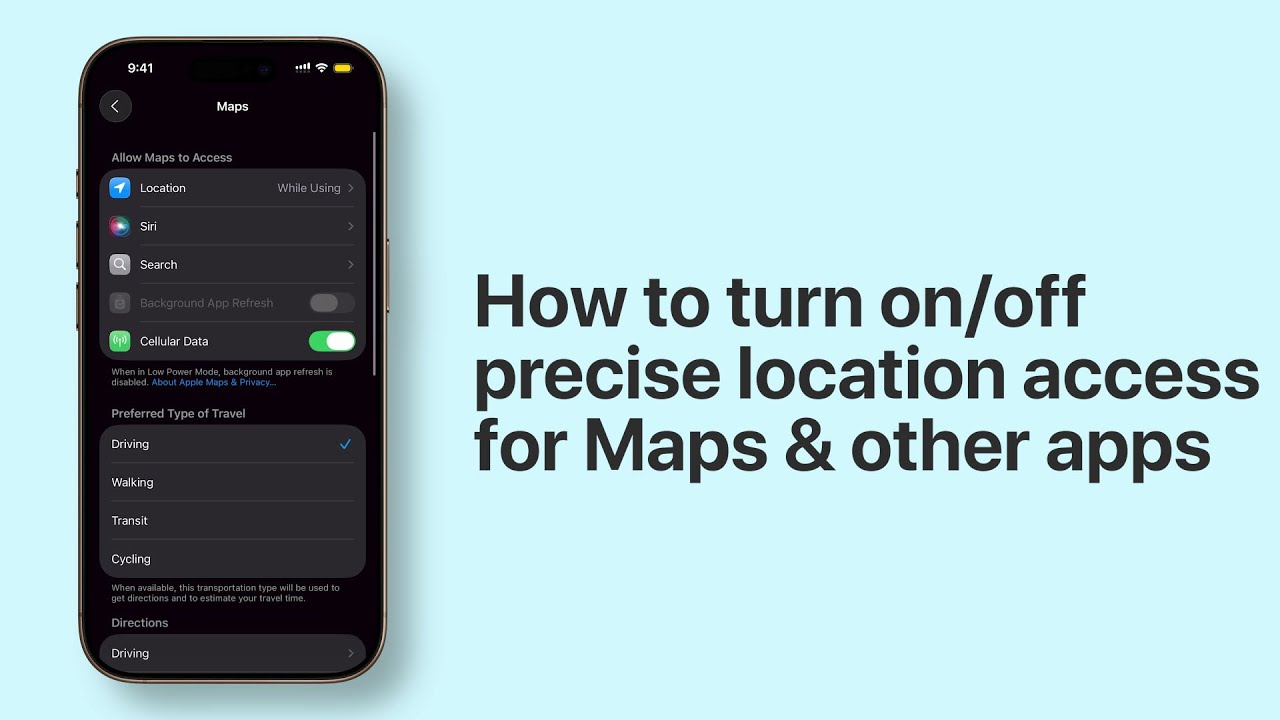
(The Precise Location toggle in an app’s settings.)
In 2025’s iPadOS 19, Apple enhanced this with better satellite integration for remote areas. But precise can drain battery faster in weak signal spots. Toggle it off for apps that don’t need pinpointing, like news readers.
This feature shines in AR games or real estate apps showing nearby listings. If privacy concerns you, remember: even precise data stays encrypted. Knowing how to turn on location services iPad means tweaking these for your needs. Experiment to find what works best.
Handling System Services and Background Access
Beyond apps, system services use location quietly. These are Apple’s built-in functions, like time zone auto-set or Siri suggestions. To manage: In Location Services settings, tap “System Services” at the bottom.
You’ll see toggles for things like “Compass Calibration” or “Significant Locations.” The latter tracks frequented spots for personalized alerts. Turn off what you don’t want, it won’t break core functions.


(System Services list at the bottom of Location Services.)
Background access happens when apps use location without being open. A blue status bar arrow signals this. If it bugs you, switch apps to “While Using” only.
iPadOS notifies you periodically about background use, prompting reviews. This transparency helps. For battery hogs, limit them. Understanding system services adds depth to how to turn on location services iPad. It ensures your device runs efficiently without surprises.
Common Problems and Fixes
Sometimes, things don’t go smoothly. If the switch won’t turn on, check for restrictions. Go to Settings > Screen Time > Content & Privacy Restrictions. If enabled, enter the passcode and allow location changes.
Low battery mode can interfere, disable it in Settings > Battery. Or, a software glitch: Restart your iPad by holding the top button and volume down until the slider appears. Slide to power off, wait 30 seconds, then restart.
If still stuck, update iPadOS. Outdated versions have bugs. Network issues? Ensure Wi-Fi is strong for initial setup. For cellular models, check data connection.
Rarely, hardware faults occur, test on another device. Apple Support forums from 2025 note similar fixes working. Mastering how to turn on location services iPad includes these troubleshooting steps. They keep you from getting stuck.
Keeping Your Privacy Safe with Location Data
Privacy is front and center with location. Apple requires apps to ask permission explicitly. Data stays on-device where possible, encrypted when shared.
Monitor use: In System Services, view “Product Improvement” toggles. Turn off sharing with Apple if desired. Apps can’t access without your okay.
For history, check Significant Locations, it’s password-protected. Clear it if needed. Use two-factor authentication for added security.
In 2025, iPadOS added more alerts for unauthorized tracking. Stay vigilant. Third-party apps? Read their policies. Knowing how to turn on location services iPad safely means enjoying benefits without risks. Balance is key.
Get Started Today
You’ve now got the full scoop on how to turn on location services iPad. From basics to advanced tweaks, this guide equips you for better app experiences. It takes just five minutes to enable, but the payoffs last. Update regularly and review permissions to stay in control.
Your iPad is more capable with location active. Try it with your favorite apps today. If issues pop up, revisit the fixes. Safe travels digitally and otherwise.
For more information & services/products visit: https://appletechsolution.com/
(FAQs)
1. What if my iPad won’t let me turn on location services?
Check for Screen Time restrictions or restart the device. Update iPadOS if needed.
2. Does turning on location services drain my battery fast?
It uses some power, but only when apps need it. Limit background access to save energy.
3. How do I stop an app from using my location?
Go to Settings > Privacy & Security > Location Services, tap the app, and choose “Never.”
4. What’s the difference between precise and approximate location?
Precise gives exact spots using GPS. Approximate is rougher, better for privacy in some cases.
5. Can I turn off location for system features only?
Yes, in Location Services > System Services, toggle off specific ones like Wi-Fi networking.